

How to test your hard drive for errors in Windows Vista
Posted On Monday, March 16, 2009 at at 11:39 AM by wlorioDid you know that Windows Vista has the built in capabilities to diagnose and fix many problems that can arise on you hard drive ?
This is a very simple process and to get started click the "start" button and then "computer" and then right click on the "C" drive and then click "properties".
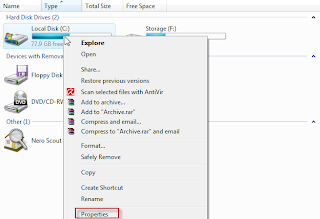
Now that we have the properties dialog box up click on the tab marked "tools". You should now see "Error-checking".
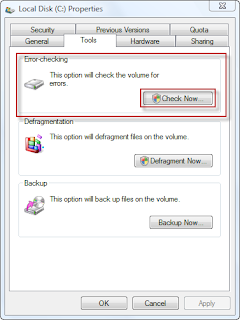
Click on "Check Now.." and then click continue on the UAC nag screen. Check disk box will now be available.
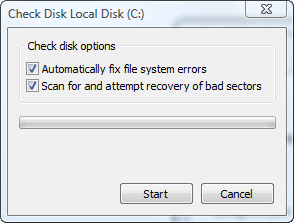
Make sure both options have a checkmark beside them and then click on "Start" but since the C drive is in use we will have to schedule this disk check the next time Windows is restarted.
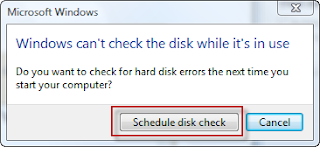
Click on "Schedule disk check" and restart Windows to begin checking your drive for errors.
 add to del.icio.us
saved by 0 users
add to del.icio.us
saved by 0 users
How to test your Pc's memory using Vistas built-in Memory Diagnostics tool
Posted On Wednesday, March 11, 2009 at at 6:51 AM by wlorioThere are many ways to test your computers memory but, if your running Windows Vista you have a built-in option.
Using the Memory Diagnostic Tool you can check your physical RAM, which can often be the cause of random crashing in Windows.
OK lets get started. First click on the "Start" button and type in "memory" in the search box like the picture below.
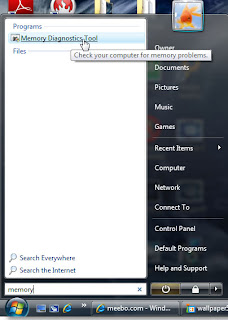
Then click on Memory Diagnostic Tool and continue through the uac nag screens and you will end up with this option.
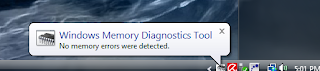
I suggest to go ahead and click Restart now and check for problems. Windows will restart the computer automatically and begin testing the computer memory. The Memory Diagnostic Tool has three modes : Basic, Standard and Extended tests which can be accessed by pressing "F1" during the test and then "F10" to apply(by default Windows will perform a STANDARD test). After all the tests have been completed Windows will display the results of the test after you log on.
 add to del.icio.us
saved by 0 users
add to del.icio.us
saved by 0 users
